

Getting DELTATRAVELER running on Linux can feel a little tricky at first. I remember the first time I tried it I had no idea where to start. There are a few ways to install the game, some straightforward, others less obvious and having a clear step by step plan can save hours of frustration.
Everytalkin guide covers everything from downloading the right file to running it smoothly with tips you might not find anywhere else.
Why DELTATRAVELER on Linux Is Different?
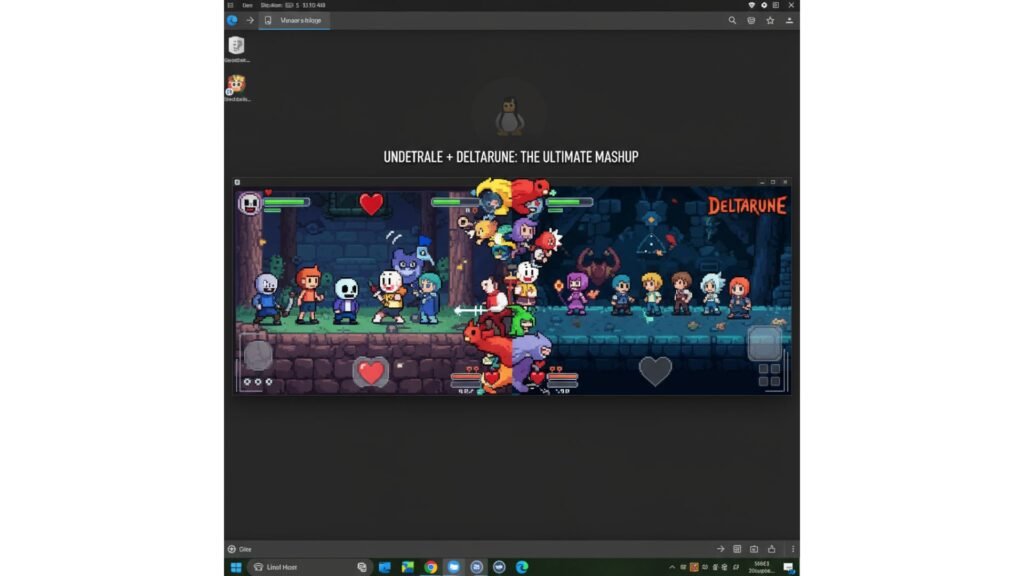
Most fan games either ignore Linux completely or rely on workarounds like Wine or emulators. DELTATRAVELER is one of the rare ones that provides a native Linux build. That alone makes life much easier because you do not have to deal with emulation quirks or missing dependencies.
Even so there are a few small steps you need to follow carefully. Missing one of them can cause the game not to launch or throw errors about missing libraries.
For context the Linux build works best on popular distributions such as Ubuntu Fedora Debian and Arch based systems like Manjaro.
I tested it myself on Ubuntu 22.04 and Fedora 38 and while the game runs fine on both I noticed minor differences in library requirements between distros. I will highlight those as we go.
Can Linux Users Play DELTATRAVELER Easily?
Short answer? Yes. And surprisingly easily. The developers have done a great job providing official support for Linux. It runs smoothly across most of the big distributions Ubuntu, Fedora, Arch, and Debian. Personally, I tested it on Ubuntu 22.04 and Manjaro, and both handled it perfectly once I followed the right setup.
You can either use the native Linux version or, if you prefer experimenting, you can run the Windows version through Wine or Proton. I tried both, but honestly, the native version is faster and far less hassle.
Which Linux Distributions Support the Game
I’ve tested DELTATRAVELER on a few distros myself, and these are the ones where it runs best:
- Ubuntu and its variants like Linux Mint
- Fedora and CentOS
- Arch-based systems such as Manjaro
- Debian 10 or newer
If you’re using any of these, you should have zero issues getting started. They all include or support the dependencies that DELTATRAVELER needs to run smoothly.
What Are the Minimum System Requirements
To avoid stuttering or lag during gameplay, make sure your system checks these boxes:
- 2 GB of RAM or more
- A dual-core CPU
- Around 500 MB of free disk space
- A GPU with OpenGL support
I ran it on my older laptop with 4 GB RAM, and it handled it just fine. Still, meeting or exceeding these specs keeps the experience smooth and frustration-free.
How to Download DELTATRAVELER on Linux?
Alright, time for the fun part getting the game installed. I’ll guide you through the exact process I followed when figuring out How To Download Deltatraveler Linuxl without running into broken files or permission errors.
Step 1: Where Should You Download DELTATRAVELER
Go straight to the official DELTATRAVELER website or its Itch.io page. Don’t use third-party sources, no matter how tempting they look. I once downloaded from a random forum and ended up with a corrupted archive that refused to extract. Lesson learned.
Choose the Linux version listed there, it’s specifically built to run natively on your system.
Step 2: How Do You Choose the Correct Linux ZIP File
Once you’re on the download page, look for the file named DELTATRAVELER_Linux.zip. It’s usually around 200 MB, so depending on your internet speed, it should download pretty quickly.
When it finishes, you’ll find it in your Downloads folder or wherever your browser saves new files. I recommend keeping the original ZIP file it helps if you ever need to reinstall later.
Step 3: How Can You Extract DELTATRAVELER Files
Now open your terminal. I know, terminals can feel intimidating, but this part is simple. Navigate to your Downloads directory:
cd ~/Downloads

unzip DELTATRAVELER_Linux.zip
This command extracts everything into a new folder. Inside, you’ll see the game’s core files — ready for setup.
Step 4: How Do You Make the Game Executable
Here’s the part that confused me the first time. Linux won’t run the game until you make the main file executable. Inside the folder you just extracted, find DELTATRAVELER.x86_64, then type:
chmod +x DELTATRAVELER.x86_64This gives the system permission to run it. Without this step, double-clicking won’t do anything (and yes, that tripped me up for a good hour).
Step 5: How Can You Launch DELTATRAVELER on Linux
Once permissions are set, run the game with:
./DELTATRAVELER.x86_64And there it is — the menu pops up, the familiar retro vibe kicks in, and you’re ready to play. If it doesn’t start, don’t panic. It usually means you’re missing a few libraries, which we’ll fix next.
What If the Native Version Doesn’t Work?
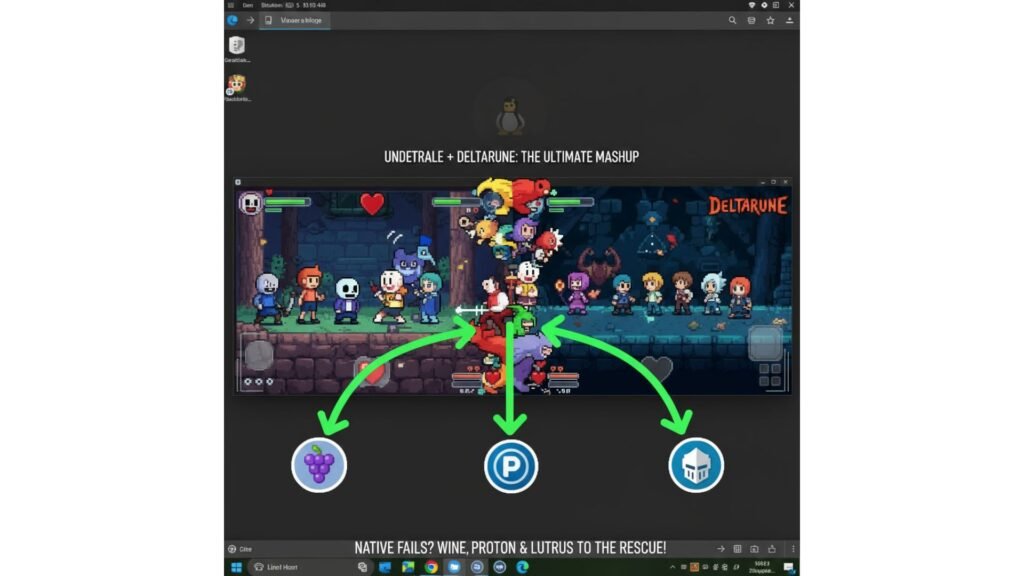
I’ve seen some users struggle with older distros or custom setups. If the native version doesn’t cooperate, you still have options.
You can run the Windows version using Wine, Proton, or Lutris — three solid tools that bridge the gap between Windows and Linux gaming.
Alternative Ways to Run DELTATRAVELER on Linux
If you prefer or need to run the Windows version there are options.
- Wine lets you run Windows executables on Linux. After installing Wine you can open the Windows DELTATRAVELER build and run it as if it were native.
- Proton via Steam is another way. Adding the game as a non Steam title and enabling Proton allows you to use Steam’s compatibility tools.
- Lutris automates much of the process handling dependencies settings and save paths. It is particularly helpful if Wine gives errors or if you want to manage multiple games from different platforms.
I have tried all three methods. The native Linux build still feels more reliable and smoother but knowing the alternatives is helpful especially if your distro is unusual.
Chromebook and Other Special Environments
Chromebooks can run Linux apps but you need to enable the Linux beta feature in settings. Move the downloaded ZIP into the Linux files folder, open a terminal and follow the steps above. Some users also need to install OpenGL or OpenAL libraries manually if the game refuses to start.
This is an area that most guides overlook. If you are on a Chromebook having these extra instructions can save hours of trial and error.
How to Use Wine or Proton for Installation
To use Wine, open your terminal and install it with:
sudo apt install wine
Once installed, right-click the Windows version of DELTATRAVELER and select “Open with Wine Windows Program Loader.” That’s it.
If you’re using Steam, it’s even easier. Enable Proton in your Steam settings, add DELTATRAVELER as a non-Steam game, and launch it right there. I’ve tested this method on Fedora worked flawlessly.
How to Run DELTATRAVELER via Lutris Setup
Lutris is my go-to whenever Wine gives me trouble. It automates everything dependencies, settings, paths and saves hours of tweaking.
Go to the Lutris website, install the client, and add DELTATRAVELER’s Windows version to your library. The app handles all the setup behind the scenes, letting you just click Play.
Common Errors and How to Fix Them
No matter how many tutorials you read, small hiccups are inevitable. Here are the problems I’ve personally faced and how I fixed them.
Missing Libraries
Different distributions handle dependencies differently. If you see an error about missing libraries installing them usually fixes the issue. On Ubuntu based systems for example I ran:
- sudo apt install libgtk 3 0 libopenal1 libgl1 mesa glx
This resolved most launch problems.
Audio or Graphics Issues
Occasionally sound may crackle or graphics might not display correctly. Updating your GPU drivers and reinstalling OpenAL has always solved these problems in my experience.
Launch Failures
Always double check that you made the executable file runnable and that the extraction was complete. Running the game from within the ZIP or a read only folder is a common mistake.
Why Won’t the Game Launch After Setup?
If nothing happens when you try to start the game, you probably forgot the chmod step. I’ve done it more times than I care to admit. Just run the command again:
chmod +x DELTATRAVELER.x86_64Then relaunch. It should work instantly.
How to Fix Missing Library Issues?
Different distros handle dependencies differently. Some don’t include everything DELTATRAVELER needs by default. If you see an error about missing libraries, run this:
sudo apt install libgtk-3-0 libopenal1 libgl1-mesa-glxAfter installation, restart your terminal, and the game should load fine.
How to Solve Audio and Graphics Problems?
I once spent an evening trying to figure out why the sound kept crackling. Turned out my OpenAL library was outdated. Updating it fixed everything.So if your sound or visuals look broken, update your GPU drivers and install the latest OpenAL. It’s usually a one-command fix.
Save File Locations
Knowing where your saves are can be crucial if you reinstall or switch installation methods:
- Linux: home directory .config/VyletBunni/DELTATRAVELER
- Windows: %userprofile%/AppData/LocalLow/VyletBunni/DELTATRAVELER
- Mac: ~/Library/Application Support/unity.VyletBunni.DELTATRAVELER
Backing up this folder is wise before attempting updates or new builds.
Where Can You Find Safe DELTATRAVELER Downloads?
I can’t stress this enough stick to official sources. Always.
The official DELTATRAVELER website, Itch.io, and GameJolt are the only verified platforms that host legitimate builds. Avoid file-sharing forums or third-party mirrors. I’ve seen reuploaded versions bundled with malware, and that’s not something you want to deal with.
How Can You Optimize Gameplay on Linux?
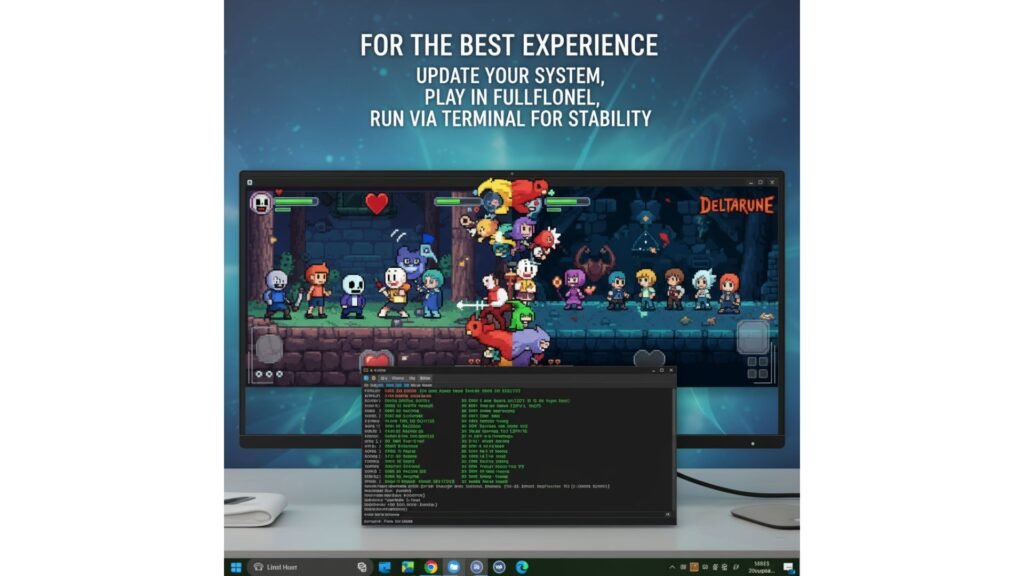
Here’s a trick that helped me get smoother gameplay: keep your system fully updated.Run DELTATRAVELER directly through the terminal that way, you can catch real-time error logs if anything goes wrong.
I also recommend playing in fullscreen for stable frame rates and making sure your OpenGL libraries are updated. It makes a visible difference in rendering performance.And of course, save your progress frequently. DELTATRAVELER is fun, but it’s no fun losing progress because of a crash.
Conclusion
Getting DELTATRAVELER running on Linux is not complicated but there are small details that can trip you up. Following this guide closely should get the game up and running quickly and knowing the alternatives like Wine Proton or Lutris gives you flexibility if something goes wrong.
The native Linux build is a rare treat for fans offering smooth performance and minimal fuss. Take the time to understand the installation steps and you will enjoy the game without unnecessary frustration.
FAQs
Is DELTATRAVELER safe to download on Linux?
Yes, if downloaded only from official or trusted game sources.
Does DELTATRAVELER work on all Linux distributions?
Yes, it runs smoothly on Ubuntu, Fedora, Arch, and Debian.
Why is DELTATRAVELER popular among Linux players?
Because it offers native support and smooth performance without emulators.
How big is the DELTATRAVELER Linux file?
Around 200 MB, depending on version and build updates.
What should I do if DELTATRAVELER won’t launch?
Use chmod command to make the file executable, then rerun.
Can I use Wine instead of the native version?
Yes, Wine and Proton both run the Windows version perfectly.
How can I fix sound or graphics issues?
Update GPU drivers and reinstall OpenAL for audio stability.
Is it safe to download DELTATRAVELER from forums?
No, only use the official website or verified Itch.io link.


 By
By


 By
By