
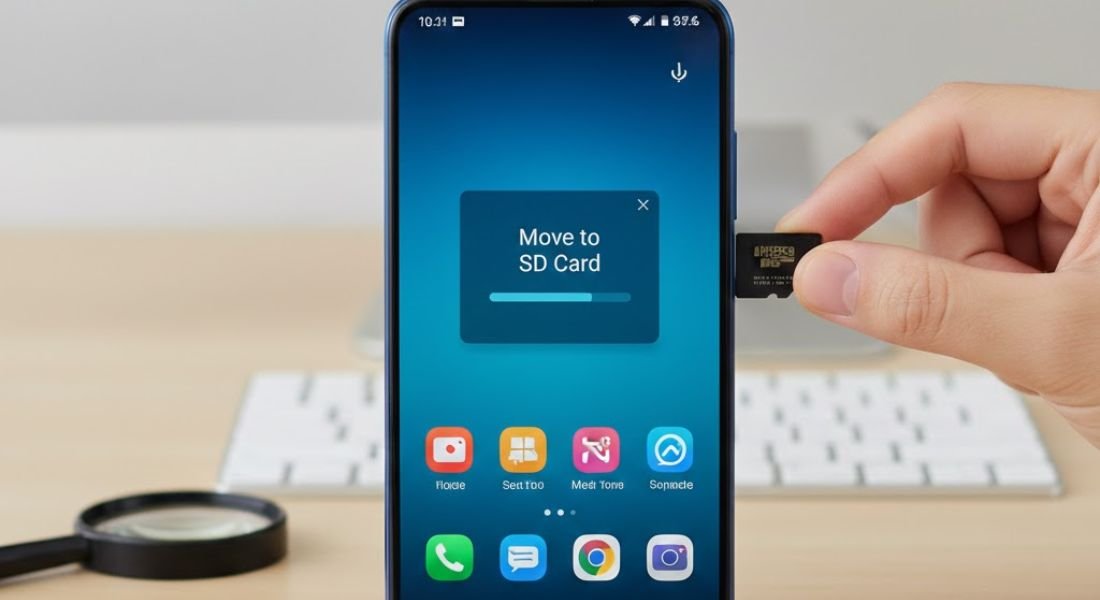

Are you tired of seeing the dreaded Storage Full notification on your Android device? Running out of internal memory is a common problem for smartphone users especially those who love installing many games and applications .
This technique of transferring applications to external storage is a simple yet powerful solution. It allows your phone’s main storage to be used for essential system files and updates while less critical applications reside on the removable memory card.
This comprehensive guide will show you exactly how to move apps to an SD card a crucial step for freeing up phone space and improving your device’s overall performance. Understanding this process can significantly extend the usable life and speed of your device.
What It Means To Move Apps To SD Card
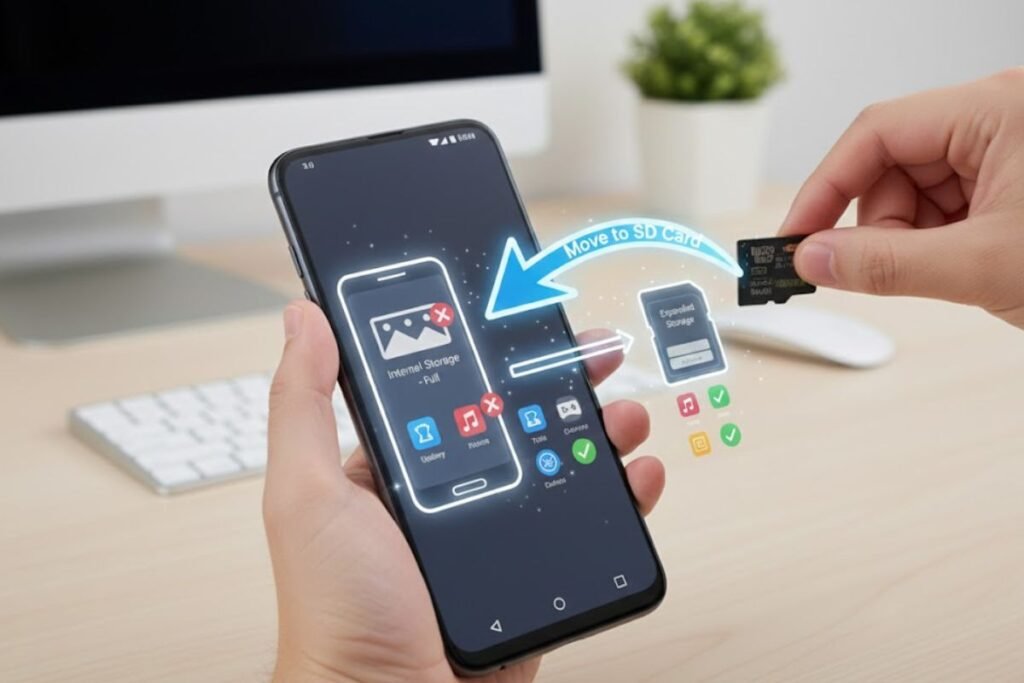
Before using any method it is important to understand what moving apps to external storage really means. When Android phones install applications they place all app data in the main storage area. That area is known as internal storage.
Moving applications to external storage involves relocating the main application files from the device’s main internal memory to an inserted memory card. This is possible because many Android devices support the use of a Secure Digital SD card to expand storage capacity.
With time internal storage becomes full because app files and hidden data increase slowly. When users search how to move apps to SD card they want to shift this app data from internal storage to the micro SD card. This helps free space inside the phone and improves daily performance.
Why You Must Relocate Applications To Sd Card
The importance of transferring applications to external storage goes beyond simply creating space. It directly impacts the day-to-day usability of your smartphone. There are several key reasons why this process is essential for better device health.
Preventing Slow Performance and Freezing
When internal storage becomes critically low your Android device struggles to perform basic operations. The operating system needs room to breathe for caching temporary files and running services. Moving apps to the removable memory card ensures the device’s core functions have the necessary space to operate smoothly preventing frustrating slowdowns or sudden freezing of the phone.
Making Room for Essential System Updates
System updates and security patches often require a significant amount of free internal storage to download and install. If the internal memory is full these critical updates will fail which leaves your device vulnerable and running outdated software. Relocating applications is the best way to guarantee space is available for these important software upgrades.
Protecting Valuable Photos and Videos
Many users utilise external storage primarily for multimedia files, such as high-resolution photos, videos, and music libraries. By moving installed apps the internal memory becomes available to store media files that are frequently accessed or synced to the cloud while keeping the application data separate and organised. This separation helps safeguard your memories even if you need to factory reset the device.
Understanding How App Support Works In Android
Not all Android apps can move to an SD card. Apps with system permissions like banking tools system apps and Google core apps must stay in internal storage. Other apps like games and media tools often support external storage.
When checking app settings the phone shows a change option if the app can move. If the option is missing the app must stay in internal memory. This behavior is normal and keeps important apps safe.
Comprehensive Step-by-Step Guide for Moving Applications
The method for transferring applications to external storage varies based on your Android version and the specific device manufacturer. We will cover the most common and effective ways to perform this transfer.
Step 1: Using the Built-in App Settings
This is the standard process available on most devices that still support moving apps. Finding the Storage Option in Device Settings. Begin by opening the Settings app on your Android smartphone. This is usually represented by a gear icon. Scroll down and locate the Apps or Applications Manager section. This area lists every application installed on the device.
Step 2: Selecting a Specific Application to Transfer
Tap on the application you wish to relocate to the SD card. Keep in mind that system apps or those critical for device function cannot be moved. Once inside the app information page look for the Storage or Storage Usage option.
Step 3: Changing the Application Storage Location
Within the storage details you may see an option labeled Change or Move to SD Card. If this option is visible tap it. A prompt will appear asking you to choose between internal storage and the external memory card. Select the memory card option then confirm the transfer by tapping Move. The operating system will then begin relocating the application files.
Step 4: Method Two Adopting the SD Card as Internal Storage
For modern Android versions 60 Marshmallow and later which may limit the direct app transfer feature a powerful alternative is using Adoptable Storage. This feature formats the removable memory card to function as permanent internal memory.
Step 5: Formatting the SD Card as Internal Memory
To use this method navigate to Settings then Storage. Tap on your inserted SD card then select Storage Settings or a similar option. Choose Format as internal or Use as internal storage. This process will encrypt the card and merge its capacity with the device’s internal memory. A crucial warning is that this action will erase all data on the memory card so back up files first.
Step 6: Automatically Transferring Applications with Adoptable Storage
Once the external storage is adopted the Android operating system will treat it as one unified storage space. New applications will be automatically installed to the location with the most free space whether it is the physical internal chip or the new adopted memory card. You can also manually review applications to check if they are now located on the integrated storage.
Third Party Tools For Moving Apps To SD Card
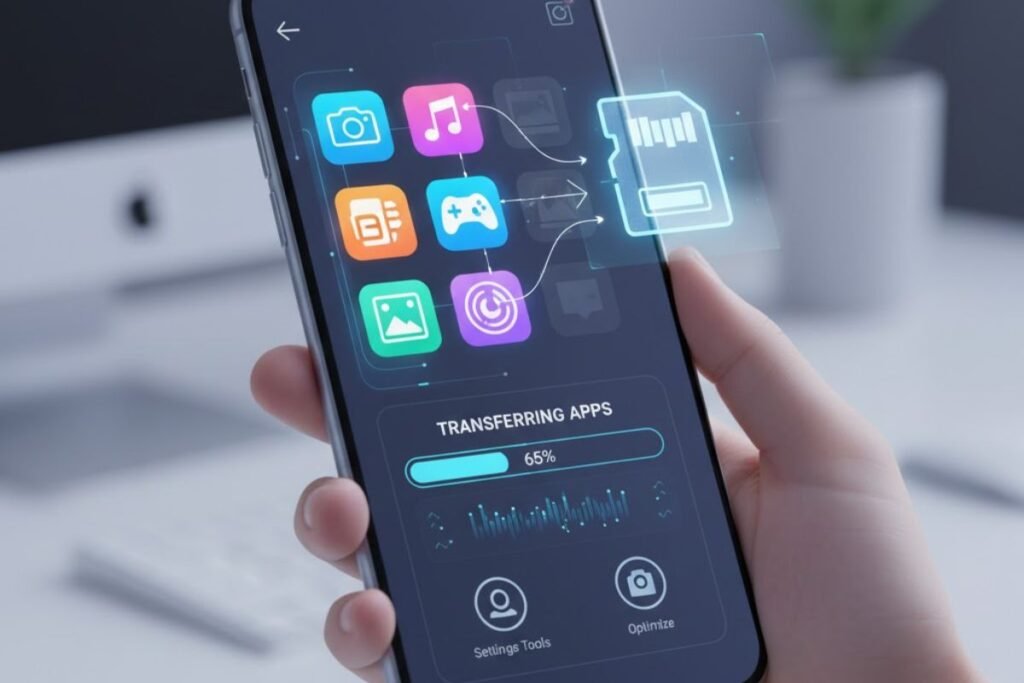
Some Android devices do not support moving apps directly through settings. In such cases users explore external tools to manage app data. Third party tools can help users follow how to move apps to SD card with a simple interface. These apps scan the device and show which apps support moving.
They also show total internal and external storage details. Many users prefer this method because they can move multiple apps at once instead of opening each app page manually. External tools also help transfer files photos videos and documents which further improves phone storage.
Understanding Limitations and Solving Common Issues
While moving applications to external storage is beneficial it is not a perfect solution. Users must be aware of the limitations to avoid performance problems.
Not All Applications Can Be Moved
A significant limitation is that the app developer must specifically allow their program to be moved to the external memory card. Banking apps security tools and system widgets often contain components that must remain on the faster internal storage to function correctly and securely. For these applications the Change button in the storage settings will simply be missing.
Performance Concerns of External Memory Cards
SD cards are typically slower than the high-speed flash memory used for internal storage. If you move a high-demand application or a large game to a slow removable memory card you might notice longer loading times and overall reduced performance. Always use a high-speed card preferably a Class 10 or UHS-1 rating to mitigate these speed issues when transferring applications.
Resolving Issues with Application Transfer Failure
If an app transfer fails it is often due to an incompatible app or an issue with the SD card itself. Try unmounting and remounting the external storage or reformatting it on your computer to ensure there are no file system errors. If the issue persists the application simply cannot be moved and you should look for other large files to transfer instead.
Why Some Apps Cannot Move To SD Card
Many users feel confused when they search how to move apps to SD card and find that some apps do not support movement. This is normal because some apps store secure data that must stay inside the internal memory. Apps linked to device security or system services work only when stored in protected areas.
Some games also keep extra files in internal storage even if the main part moves to the SD card. Android manages this automatically. Users cannot force move an app that does not allow movement because it can break the function of that app.
Best Practices for SD Card Management and App Transfer
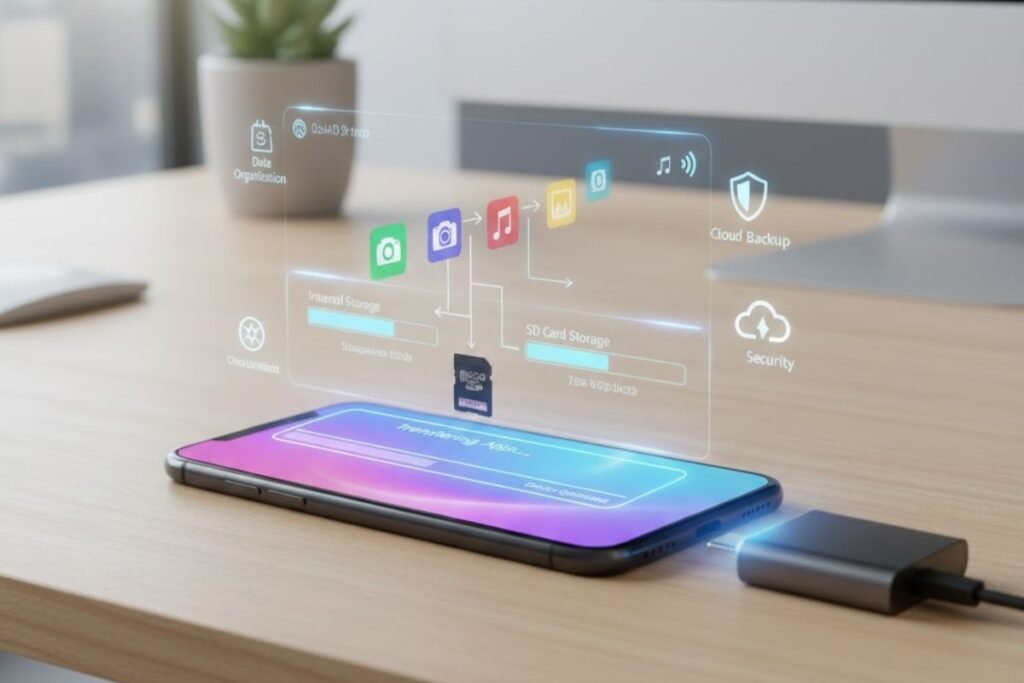
- Effective storage management requires more than just moving apps to SD card it needs a clear strategy for what gets moved and where data is stored.
- Prioritising Application Transfers Always move the largest least-used apps and games first. Heavy apps that do not run background services are ideal for external storage. Small frequently-used apps should stay in internal memory to keep performance good.
- Using the External Memory Card for Multimedia Files. Use the SD card mainly for media. Configure camera music and video apps to save content directly to the SD card. This frees internal storage without affecting app performance.
- Regularly Checking Storage Health Periodically review storage in phone settings. Check the Application Manager or Storage section to see which apps or files use the most space. This helps plan future transfers to the SD card.
Conclusion
Moving apps to external storage is a simple and powerful way to improve Android performance. Many users search how to move apps to SD card because phone storage fills up fast and daily use becomes slow. When users shift supported apps to the SD card they free internal storage and help the phone work easily.
The process is easy through settings or with adoptable storage or with third party tools. Each method works well when the SD card is strong enough to handle app data. With the right steps every Android user can manage storage in a simple and safe way. This guide helps users understand all methods clearly so they can pick the best option for their phone and enjoy better performance every day.
FAQs
Can every Android app move to an SD card?
No not all apps support app movement. System apps and secure apps must stay in internal storage. Only supported apps can shift to the SD card.
Why does my phone not show the change button?
If the change button does not appear it means the selected app does not support external storage. Some Android versions also restrict movement for certain apps.
Is third party app movement safe?
Trusted apps from known developers are safe. Users should download only verified apps from the store to manage app movement.
How much space can I free by moving apps?
The amount depends on the app size. Large games free more space while small apps free less space. Android shows total size before moving.
What should I do before formatting a memory card as internal memory?
Before formatting your memory card using the Adoptable Storage feature you must back up all existing photos videos and files from the removable memory card. The formatting process will completely erase all data on the card.


 By
By
 By
By
 By
By
 By
By